Web Portals
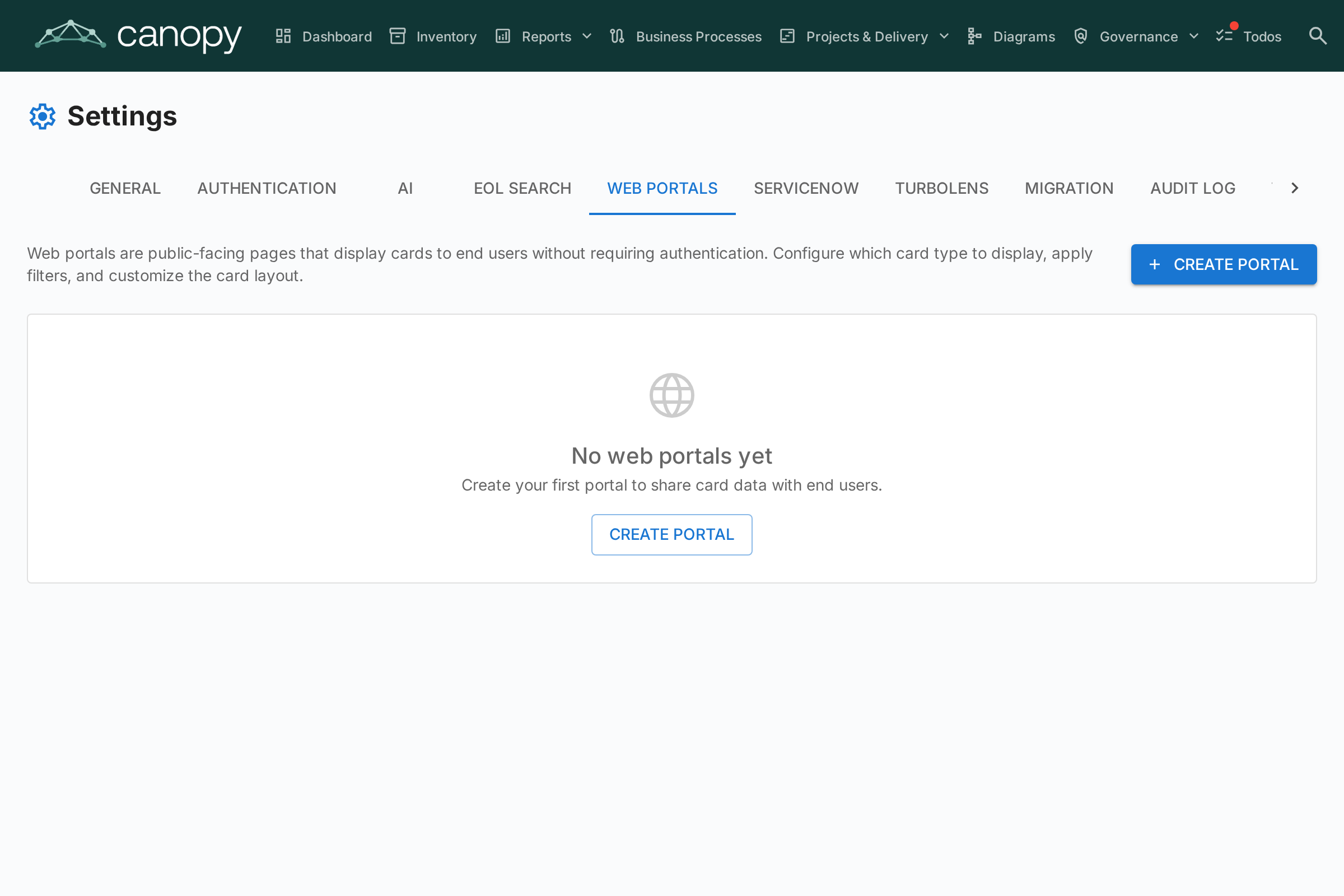
The Web Portals feature (Admin > Settings > Web Portals) lets you create public, read-only views of selected card data — accessible without authentication via a unique URL.
Use Case
Web portals are useful for sharing architecture information with stakeholders who don't have a Canopy account:
- Technology catalog — Share the application landscape with business users
- Service directory — Publish IT services and their owners
- Capability map — Provide a public view of business capabilities
Creating a Portal
- Navigate to Admin > Settings > Web Portals
- Click + New Portal
- Configure the portal:
| Field | Description |
|---|---|
| Name | Display name for the portal |
| Slug | URL-friendly identifier (auto-generated from name, editable). The portal will be accessible at /portal/{slug} |
| Card Type | Which card type to display |
| Subtypes | Optionally restrict to specific subtypes |
| Show Logo | Whether to display the platform logo on the portal |
Configuring Visibility
For each portal, you control exactly which information is visible. There are two contexts:
List View Properties
What columns/properties appear in the card list:
- Built-in properties: description, lifecycle, tags, data quality, approval status
- Custom fields: Each field from the card type's schema can be individually toggled
Detail View Properties
What information appears when a visitor clicks on a card:
- Same toggle controls as the list view, but for the expanded detail panel
Portal Access
Portals are accessed at:
https://your-canopy-domain/portal/{slug}
No login is required. Visitors can browse the card list, search, and view card details — but only the properties you've enabled are shown.
Portals are read-only. Visitors cannot edit, comment, or interact with cards. Sensitive data (stakeholders, comments, history) is never exposed on portals.