Surveys
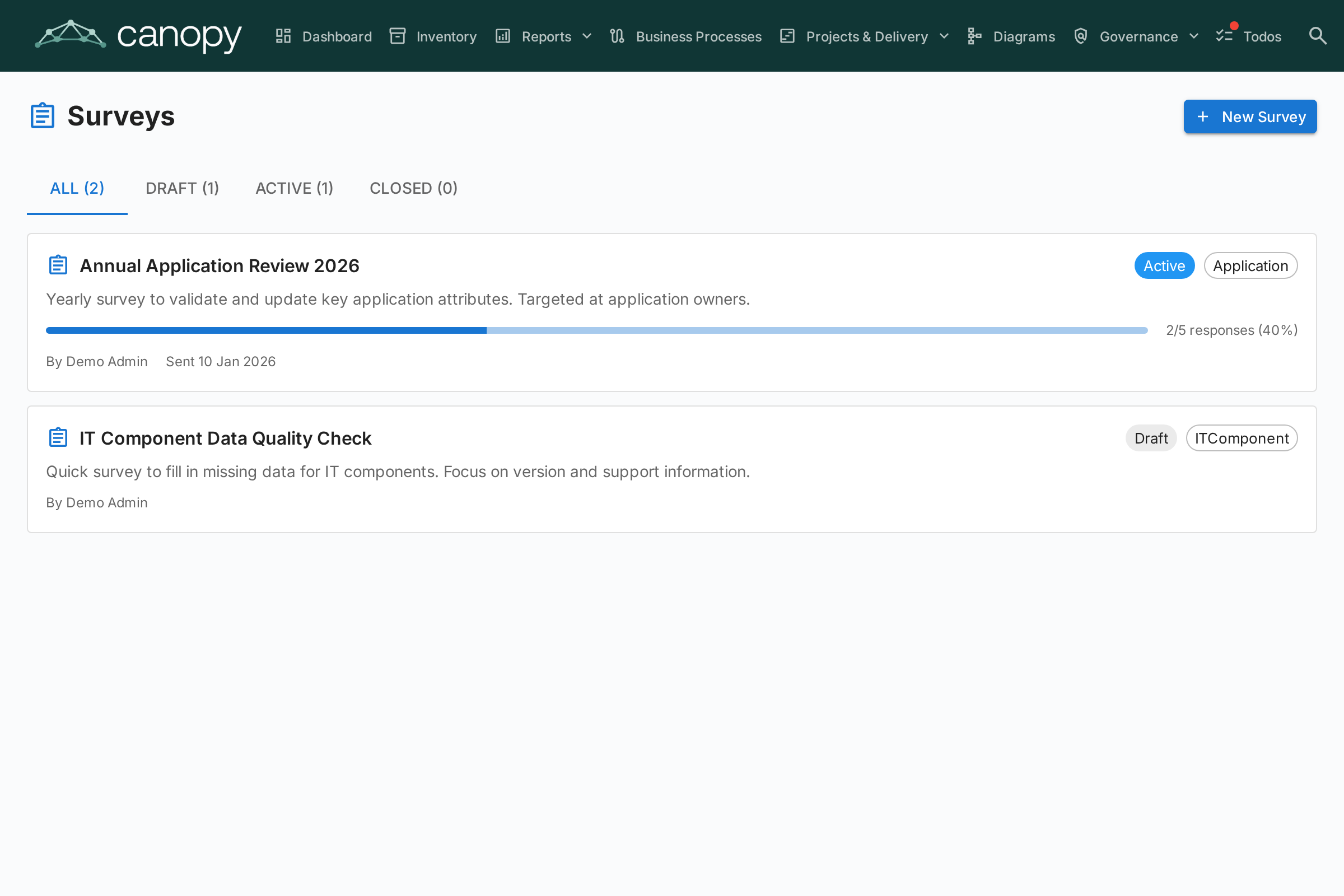
The Surveys module (Admin > Surveys) enables administrators to create data-maintenance surveys that collect structured information from stakeholders about specific cards.
Use Case
Surveys help keep your architecture data current by reaching out to the people closest to each component. For example:
- Ask application owners to confirm business criticality and lifecycle dates annually
- Collect technical suitability assessments from IT teams
- Gather cost updates from budget owners
Survey Lifecycle
Each survey progresses through three states:
| Status | Meaning |
|---|---|
| Draft | Being designed, not yet visible to respondents |
| Active | Open for responses, assigned stakeholders see it in their Todos |
| Closed | No longer accepting responses |
Creating a Survey
- Navigate to Admin > Surveys
- Click + New Survey
- The Survey Builder opens with the following configuration:
Target Type
Select which card type the survey applies to (e.g., Application, IT Component). The survey will be sent for each card of this type that matches your filters.
Filters
Optionally narrow the scope by filtering cards. Three filter types are available and can be combined:
- Specific cards — Pick one or more cards directly (filtered to the selected target type). Use this to target a single card or a hand-picked subset.
- Cards related to — Only include cards that have a relation to one of the listed items (e.g., all Applications related to the Sales organization).
- Tags and Attribute filters — Match cards by tag or by attribute conditions (e.g., cost greater than 10 000, TIME rating is missing).
Questions
Design your questions. Each question can be:
- Free text — Open-ended response
- Single select — Choose one option from a list
- Multiple select — Choose multiple options
- Number — Numeric input
- Date — Date picker
- Boolean — Yes/No toggle
Relationships
Beyond attributes, a survey can also ask respondents to keep a card's relationships current. In the Fields step, the Relations section lists every relationship the target card type can have, in both directions (for example, for an Application: supports → IT Component and used by ← Organization). For each one you pick, choose an action:
- Maintain — The respondent sees the currently linked cards and can add or remove links using a search picker.
- Confirm — The respondent simply acknowledges that the current links are correct, or turns the toggle off to propose changes.
When you apply such a response, Turbo EA adds the new links and removes the ones the respondent dropped. The change is recorded in the card's history just like a manual relationship edit.
Auto-Actions
Configure rules that automatically update card attributes based on survey responses. For example, if a respondent selects "Mission Critical" for business criticality, the card's businessCriticality field can be updated automatically.
Sending a Survey
Once your survey is in Active status:
- Click Send to distribute the survey
- Each targeted card generates a todo for the assigned stakeholders
- Stakeholders see the survey in their My Surveys tab on the Tasks page
Viewing Results
Navigate to Admin > Surveys > [Survey Name] > Results to see:
- Response status per card (responded, pending)
- Individual responses with per-question answers
- An Apply action to commit auto-action rules to card attributes