Business Process Management (BPM)
The BPM module allows documenting, modeling, and analyzing the organization's business processes. It combines visual BPMN 2.0 diagrams with maturity assessments and reporting.
The BPM module can be enabled or disabled by an administrator in Settings. When disabled, BPM navigation and features are hidden.
Process Navigator
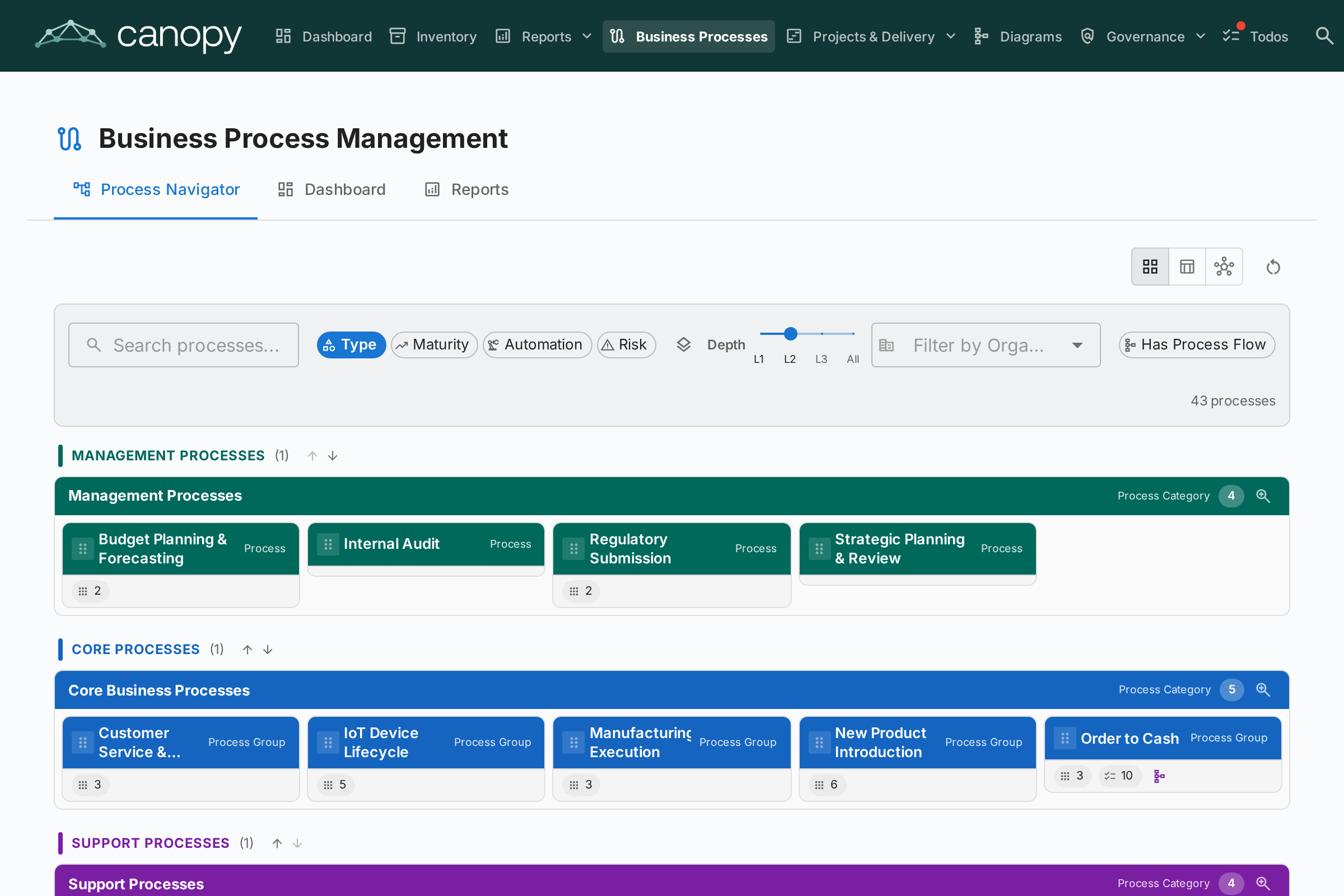
The Process Navigator organizes processes into three main categories:
- Management Processes — Planning, governance, and control
- Core Business Processes — Primary value-creating activities
- Support Processes — Activities that support core business operations
Filters: Type, Maturity (Initial / Defined / Managed / Optimized), Automation level, Risk (Low / Medium / High / Critical), Depth (L1 / L2 / L3).
BPM Dashboard
An order is received by the warehouse. A worker packs the order and delivers it to shipping where it gets labelled before being added to the outgoing mail. If any items are not available or the label cant be printed an exception is raised. Expections are triaged by order date and handled by the specialist team.
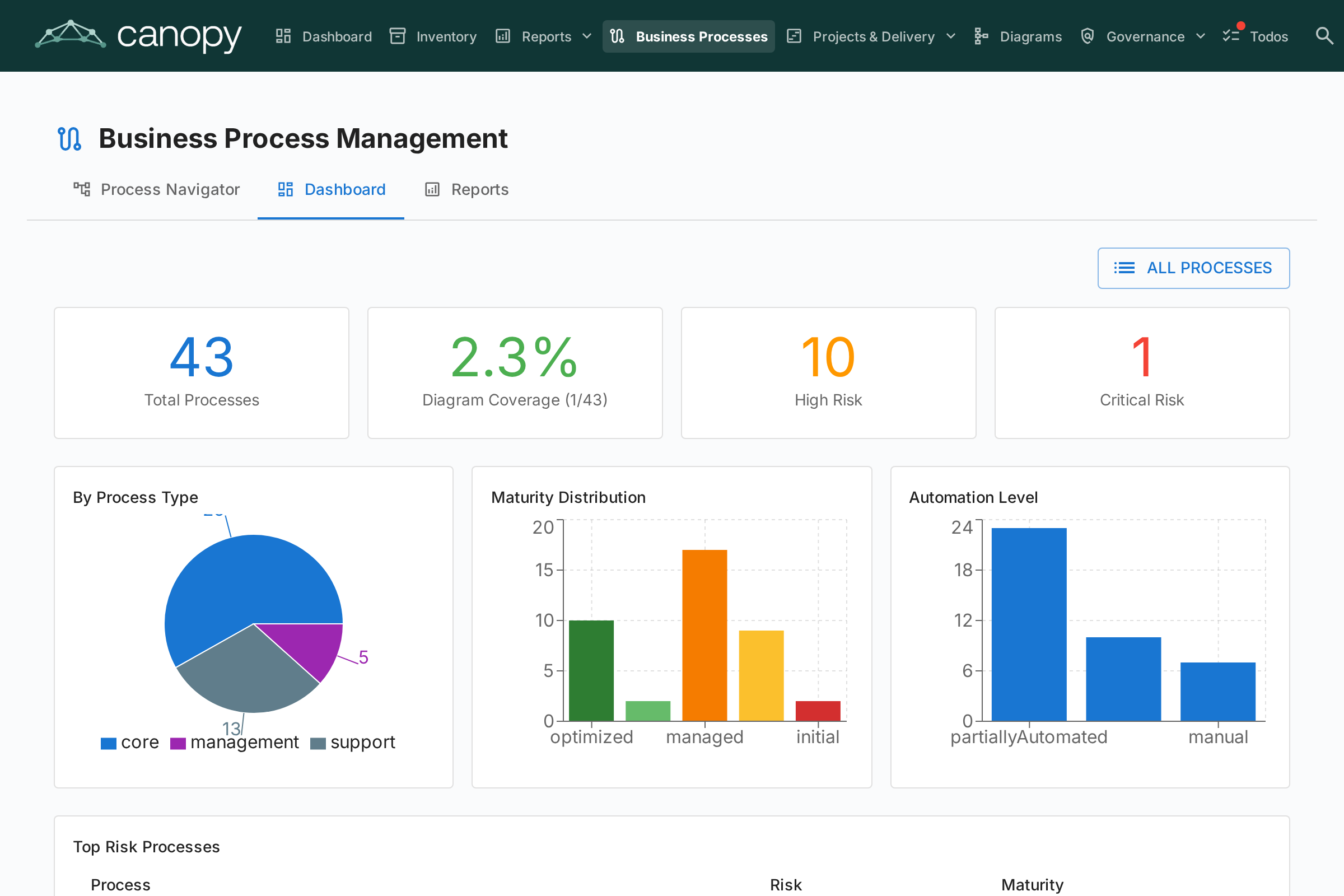
The BPM Dashboard provides an executive view of process status:
| Indicator | Description |
|---|---|
| Total Processes | Total number of documented business processes |
| Diagram Coverage | Percentage of processes with an associated BPMN diagram |
| High Risk | Number of processes with high risk level |
| Critical Risk | Number of processes with critical risk level |
Charts show distribution by process type, maturity level, and automation level. A top risk processes table helps prioritize investments.
AI-Powered BPMN Generation
BPMN generation requires an AI provider to be configured in Settings → AI. The feature is available to users with the bpm.generate permission (BPM Admin and Member roles by default).
Instead of drawing a process flow from scratch, you can describe it in plain language and let Canopy generate the BPMN diagram for you. The generation pipeline runs through a multi-step validation cycle:
- An LLM converts your text into a structured Logic-Core JSON representation
- A deterministic reviewer checks soundness rules (e.g. every path reaches an end event, no orphaned gateways)
- A layout engine renders the Logic-Core into a fully compliant BPMN 2.0 XML diagram
- A compliance pass evaluates the diagram against 28 style and pragmatics rules
Generating a New Diagram
- Open a Business Process card and go to the Process Flow tab.
- If no diagram exists yet, click Generate with AI.
- In the dialog, type a plain-language description of the process — the more specific, the better:
"An order is received. A warehouse worker checks stock. If available, the order is packed and dispatched. If not, the customer is notified and the order is cancelled."
- Click Generate. The pipeline runs in the background (typically 15–30 seconds).
- When complete, the dialog shows:
- The rendered BPMN diagram (preview)
- A compliance summary — green checkmark if all rules pass, or a list of warnings with their severity
- Click Save to store the diagram, or close to discard it.
Amending an Existing Diagram
If a BPMN diagram already exists on a process card, the Generate button changes to Amend. This lets you refine the current diagram with a targeted instruction rather than regenerating from scratch:
- On the Process Flow tab, click Amend.
- Describe the change you want to make:
"Add an escalation path from the approval step to a manager review if the request exceeds €10,000."
- Click Generate. The existing Logic-Core is updated and re-validated.
- Review the updated diagram and compliance summary, then Save.
Compliance Summary
After generation, the dialog shows a compliance summary based on 28 rules across four layers:
| Layer | Rules | Examples |
|---|---|---|
| Soundness | S01–S12 | Every path reaches an end event; gateways are paired correctly |
| Style | M01–M10 | Meaningful task labels; appropriate use of lanes |
| Pragmatics | P01–P03 | Process fits on a single page; no excessive branching |
| Workflow-Net | WF01–WF03 | Petri-net reachability and safeness |
Errors (red) block saving. Warnings (amber) are informational — the diagram can still be saved.
BPMN generation requires the bpmn-renderer sidecar service, which handles the BPMN 2.0 XML layout step (powered by ELK via the yet-another-bpmn-auto-layout library).
Update with AI
When you have an existing draft open in the Process Flow Editor, an Update with AI button appears in the toolbar. This lets you refine the current diagram with a plain-language instruction without leaving the editor.
The "Update with AI" button only appears when a draft version is open in the editor. Published or archived versions cannot be updated directly.
- Open a Business Process card → Process Flow tab → open a draft in the editor.
- Click Update with AI in the toolbar.
- Read the disclaimer in the dialog — AI updates may rearrange the diagram layout.
- Enter your instruction in the text field:
"Add a rejection branch from the approval step back to the requester."
- Click Update with AI. The AI amends the diagram and creates a new draft (the original draft is preserved).
- The editor switches to comparison mode, showing a single full-screen read-only viewer. Use the New AI Draft / Previous Version toggle in the toolbar to switch between the two.
- The Change Summary drawer opens automatically on the right, showing:
- Added — new tasks, gateways, or events
- Removed — elements that were deleted
- Modified — elements whose name or lane changed
- Lane-level additions and removals
- Choose your next step:
- Accept & Edit New Draft — navigate to the new draft to continue editing or submit for approval
- Revert Update — delete the new AI draft and return to the original draft
Reverting is session-only. If you navigate away and come back, the new draft will already be in the Drafts list — use the delete action on the draft version to remove it manually.
Process Flow Editor
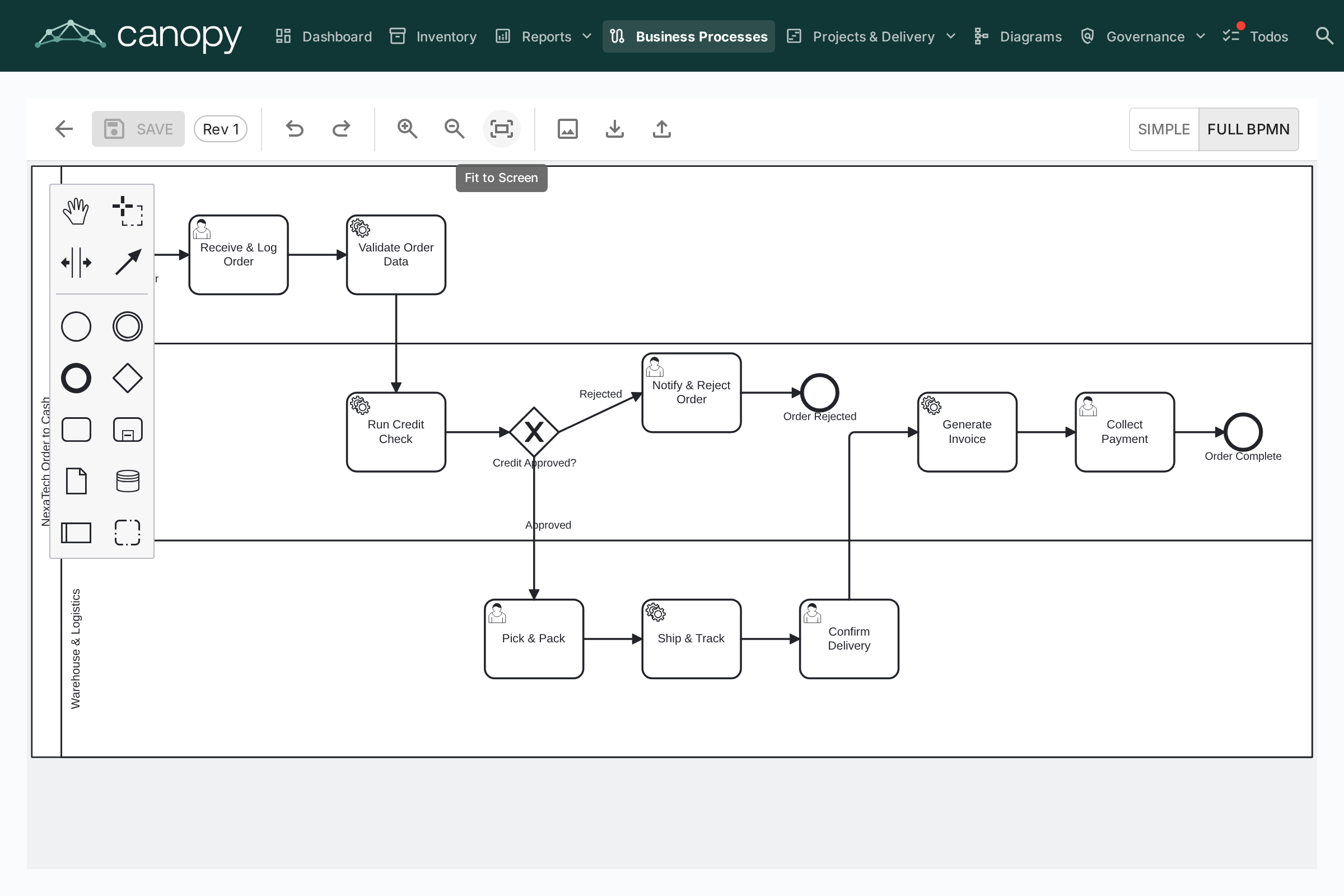
Each Business Process card can have a BPMN 2.0 process flow diagram. The editor uses bpmn-js and provides:
- Visual modeling — Drag and drop BPMN elements: tasks, events, gateways, lanes, and sub-processes
- Starter templates — Choose from 6 pre-built BPMN templates for common process patterns (or start from a blank canvas)
- Element extraction — When you save a diagram, the system automatically extracts all tasks, events, gateways, and lanes for analysis
Element Linking
BPMN elements can be linked to EA cards. For example, link a task in your process diagram to the Application that supports it. This creates a traceable connection between your process model and your architecture landscape:
- Select any task, event, or gateway in the BPMN diagram
- The Element Linker panel shows matching cards (Application, Data Object, IT Component)
- Link the element to a card — the connection is stored and visible in both the process flow and the card's relations
Approval Workflow
Process flow diagrams follow a version-controlled approval workflow:
| Status | Description |
|---|---|
| Draft | Being edited, not yet submitted for review |
| Pending | Submitted for approval, awaiting review |
| Published | Approved and visible as the current version |
| Archived | Previously published version, kept for history |
Submitting a draft creates a version snapshot. Approvers can approve (publish) or reject (with comments) the submission.
Process Assessments
Business Process cards support assessments that score the process on:
- Efficiency — How well the process uses resources
- Effectiveness — How well the process achieves its goals
- Compliance — How well the process meets regulatory requirements
Assessment data feeds into the BPM Reports.
BPM Reports
Three specialized reports are available from the BPM Dashboard:
- Maturity Report — Distribution of processes by maturity level, trends over time
- Risk Report — Risk assessment overview, highlighting processes that need attention
- Automation Report — Analysis of automation levels across the process landscape